 |
 |
The built-in graphic equalizer (EQ) in the Yamaha arranger keyboards is an incredible tool that can be used to enhance the overall sound of your keyboard. The factory default setting is "FLAT," which means that the volume level of all frequencies from drums to cymbals are approximately the same. This produces a soft sound for pianos, sax, guitar and all other instruments, which apply to ballad styles, background music and small room settings.
There are times, however, when you need a more pronounced drum, thumping bass, crisp piano and a piercing guitar, sounds that lend themselves to performances in large halls, jumping big band numbers, room-rocking rock and roll and kicking country. Until the advent of the PSR-2000 models, the only way this could be accomplished was by adjusting the graphics equalizer on the PA amplifier head. While it did enhance the keyboard's overall sound, it also impacted the performance of the band's singers, guitar players and other amplified instruments that used the same system. This is no longer a problem.
While the Yamaha instruction manuals provide some information as to the operation of the keyboard's graphic equalizer, at best it is nothing more than an overview. Turn on the keyboard and press the button marked [MIXING CONSOLE]. The location of this panel button varies from model to model, but it is generally near the main LCD display screen.
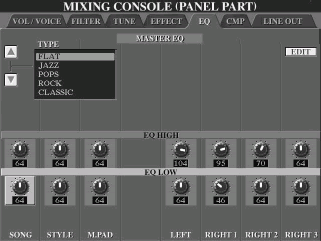 Using
the <Tab> buttons located near the upper right corner of the LCD screen,
tab over to the tab marked EQ. The screen shot here shows the EQ tab in the
MIXINB CONSOLE (PANEL PART) display screen on the Tyros. Although not as
colorful, this page is similar to the one shown on the various mid-range
keyboards.
Using
the <Tab> buttons located near the upper right corner of the LCD screen,
tab over to the tab marked EQ. The screen shot here shows the EQ tab in the
MIXINB CONSOLE (PANEL PART) display screen on the Tyros. Although not as
colorful, this page is similar to the one shown on the various mid-range
keyboards.
On the left side of the screen, you will notice that there are five factory preset settings for the Master EQ that include: FLAT, JAZZ, POPS, ROCK, CLASSIC and two user pages, USER1 and USER2. (Note: the preset "Type" names may be different on your model.) Each factory setting can be edited. However, you can not permanently store your changes in these preset types. But there is a provision for storing your settings in either of the two user slots (USER1 or USER2). When saving "your" version, you can name it whatever you like. These settings are independent of settings saved in the Music Finder Database, One-Touch Settings, or Registration Memory. Therefore, if you save the settings of a particular song or instrument and make the selection through these memory slots, it will have no effect on settings made to the graphics equalizer.
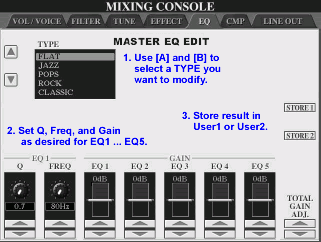 The
PSR and TYROS models have a five-band equalizer permitting you to amplify
a wide range of frequencies. Scroll down through the Master EQ list to USER1
and select "EDIT" by pressing the [F] key located on the right
side of the LCD screen. This will reveal a window or screen that shows five
sliders marked EQ1 through EQ5. The illustration here show this edit screen
for the Tyros. This same screen on the PSR-S950 is shown below and the EQ screen for the PSR-2000 is shown in the next paragraph.
The
PSR and TYROS models have a five-band equalizer permitting you to amplify
a wide range of frequencies. Scroll down through the Master EQ list to USER1
and select "EDIT" by pressing the [F] key located on the right
side of the LCD screen. This will reveal a window or screen that shows five
sliders marked EQ1 through EQ5. The illustration here show this edit screen
for the Tyros. This same screen on the PSR-S950 is shown below and the EQ screen for the PSR-2000 is shown in the next paragraph.
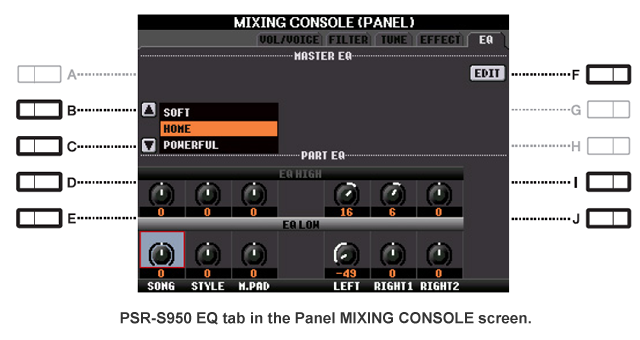
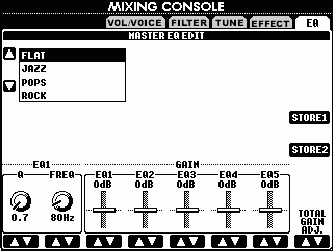 To
the left of the sliders you'll see two rotating controls, one marked "Q" and
the other "FREQ." When an EQ band or frequency is edited by sliding
one of the sliders, the value is highlighted and the band you're working
with appears above both the "Q" and "FREQ"
controls. The higher the "Q" setting (bandwidth), the narrower
the frequency band you can work with. Therefore, if you keep the "Q" setting
relatively low, say at 1.0 or less, you have a wider range of frequencies
to work with in the EQ setting you are working with. If you wanted to work
with just the bass or drums, you could adjust the Q setting so that the waveform
is quite narrow, thereby allowing you to amplify a narrow segment of the
drums without effecting the bass sounds. If the bandwidth is wide, there
can be some overlapping of sounds, which in the mid range frequencies, may
be desirable.
To
the left of the sliders you'll see two rotating controls, one marked "Q" and
the other "FREQ." When an EQ band or frequency is edited by sliding
one of the sliders, the value is highlighted and the band you're working
with appears above both the "Q" and "FREQ"
controls. The higher the "Q" setting (bandwidth), the narrower
the frequency band you can work with. Therefore, if you keep the "Q" setting
relatively low, say at 1.0 or less, you have a wider range of frequencies
to work with in the EQ setting you are working with. If you wanted to work
with just the bass or drums, you could adjust the Q setting so that the waveform
is quite narrow, thereby allowing you to amplify a narrow segment of the
drums without effecting the bass sounds. If the bandwidth is wide, there
can be some overlapping of sounds, which in the mid range frequencies, may
be desirable.
Note: the "TOTAL GAIN ADJ" will move all 5 EQ settings up or down in unison. Thus, if you wanted to make, for example, the "JAZZ" setting a bit louder, you could press [8A] twice and that would move the JAZZ Gain settings (-6, 2, 4, -4, and -6) up two notches to (-4, 0, 6, -2, and -4). The table below shows the factor settings for each of the PSR-2000 preset Master EQ types.
| Preset | EQ1 | EQ2 | EQ3 | EQ4 | EQ5 |
|---|---|---|---|---|---|
| FLAT | 0.7/50Hz/0 | 0.3/125Hz/0 | 0.3/900 Hz/0 | 0.5/3.2kHz/0 | 0.7/6.3kHz/0 |
| JAZZ | 0.7/50Hz/-6 | 0.3/125Hz/2 | 0.3/900Hz/4 | 0.5/3.2kHz/-4 | 0.7/6.3kHz/-6 |
| POPS | 0.7/125Hz/4 | 2.0/315Hz/-4 | 0.7/1.0kHz/3 | 2.0/2.0kHz/-4 | 0.7/5.0kHz/6 |
| ROCK | 0.7/125Hz/7 | 0.7/200kHz/4 | 0.5/1.2kHz/-4 | 1.0/2.2kHz/4 | 0.7/6.3kHz/2 |
| CLASSIC | 0.7/80Hz/3 | 0.7/315Hz/4 | 0.5/1.0kHz/0 | 0.7/6.3kHz/2 | 0.7/6.3kHz/-3 |
EQ Settings for the PSR-2000
Through many hours of experimentation, I have found the following settings to be effective for playing large rooms, halls and outdoor jobs. In the USER1 slot, select edit, then set the "Q" control at 0.7 and the "FREQ" control at 1.8 kHZ. Now adjust the EQ sliders for the Gain to the following settings: EQ1=6, EQ2=4, EQ3=4, EQ4=8 and EQ5=10. Press the "STORE1" button and your settings will then be saved to that memory location. You'll be given a chance to rename USER1 to something that might remind you of what this settings is for. Now press the [EXIT] button and you will be returned to the main "MASTER EQ" screen.
This is a standard tone control screen that allows you to set the high and low tones of each function shown. Again, this will vary with the size of the room you are playing and the styles you wish to emphasize. For most situations, the editing done previously with the sliders and five-band equalizer will more than suffice to fit your needs, therefore a setting of 64, which is mid range, seems to work just fine. Naturally, this feature is subjective and individual settings will vary.
EQ Settings for the PSR-3000
[The preset EQs on the PSR-3000 produce even less variation than those on the PSR-2000 and are disappointing to most users. Gary Diamond, who now plays the 3000, has some suggestions for EQ and Mic settings performers may want to consider trying. - Joe Waters ]
| Preset | EQ1 | EQ2 | EQ3 | EQ4 | EQ5 |
|---|---|---|---|---|---|
| FLAT | 0.7/80Hz/0 | 0.7/500Hz/0 | 0.7/1.0Hz/0 | 0.7/4.0Hz/0 | 0.7/8.0kHz/0 |
| HOME | 2.5/70Hz/0 | 2.5/200Hz/-2 | 2.0/700Hz/0 | 2.0/2.5kHz/-2 | 2.0/10.0kHz/2 |
| CONCERT | 2.5/63Hz/2 | 2.2 /180Hz/-3 | 2.6/630Hz/-2 | 2.0/2.0kHz/-2 | 1.0/10.0kHz/1 |
| AUXOUT PA | 2.5/63Hz/0 | 2.0/160kHz/-3 | 2.0/1.6kHz/-1 | 1.8/2.8kHz/-2 | 1.0/10.0kHz/1 |
| AUXOUT HIFI | 2.5/80Hz/0 | 1.8/200Hz/-2 | 1.8/900Hz/-2 | 1.8/2.0kHz/0 | 1.0/10.0kHz/0 |
There have been numerous requests for mic and Main EQ settings that work well on the PSR-3000. Here are the settings I currently use for the 3000s Main EQ that are stored under USER1:
EQ1=4, EQ2=3, EQ3=4, EQ4=8, EQ5=10
For the vocal settings, I prefer using High Male Qua for harmonies with the following settings:
LOW EQ=80 +2, MID EQ=2.0, 0.0, HIGH EQ=10, +9
NOISE GATE= OFF, -60, COMPRESSOR= ON, -20, 5.0, 110VOCODER HARMONY CONROL= PLAY, OFF, LOWER, 35, AUTO, XF, OFF, 85
SET TRIM POT FOR MIC AT APPROXIMAELY 10:00 O'clock position. (much of this will depend on the type and quality of the mic you are using)
NOTE: The vocal settings seem to work particularly well using the Crown CM-311-A headset mic, Sennheiser E-855 and Samson Q7. I have not used the Shure SM57A so I can not comment on its performance with the above settings, but it should be good to excellent.
EQ Settings for Tyros 2
A good starting point for the global T2's EQ is 5, 4, 3, 5, 8. Keep in mind, however, this will vary with different PA systems and vainest's just a ballpark figure. I set a friends T2 to these settings a few months ago and it sounded fantastic.
Gary
EQ Settings for Tyros 4
[The following notes are from Scott Langholff who researched the issue of finding EQ settings for his Tyros 4. Find more on this issue in the PSR Tutorial Forum message thread. - Joe Waters ]
(25 July 2011) I think the EQ and compressor settings are quite personal depending what sound the player likes, what kind of speaker system is being used, the type of music being played and the acoustics of each room.
I use JBL Eon G2's. At first I didn't like the sound as compared to my T2 at loud volume. I did discover the same EQ settings on the T2 and T4 with no compression are identical in sound using the same style and OTS. I've come to the conclusion that the sound is just different the way the styles and OTS are set. There is some getting used to. I asked for suggestions on several forums. I tried them all. Everything from go flat, to just raise the bass to start at flat and just lower volumes and I'll get less noise, no compression, etc. I appreciate all the responses very much, but what I have ended up with currently is my former EQ that I've used probably since the T1.
EQ Setting
My EQ settings are, first set it to flat, then adjusted to the settings shown in the table below:
| EQ1 | EQ2 | EQ3 | EQ4 | EQ5 |
| +5 | +4 | +2 | +6 | +10 |
I tested these setting with all the EQ preset types, flat, TRS-MS04, SP Stage, etc. These will make a big difference. I found that starting from the Flat type setting is by far the best for me.
Compressor Setting
The compressor has different controls than the T2, I am currently using the following settings. I used the Basic type as my starting point, then:
| Threshold Offset | Ratio Gain | Gain Offset |
| -13 | +3 | +3 |
This is giving me a pretty good sound. I'm at least in the ballpark with what I'm looking for. I will probably continue to test out other compression but may end up leaving it as it is. I wish Yamaha had more info and explanation for this.
As it is for the compressor, I used some tips that came from Steve Demming of Yamaha US as follows. (These come from the PSRTutorial FAQ page.)
F.89. How to select Tyros 3 compressor settings.
The T3 gives you a choice of compressor types, e.g. Basic, TRS, Live, etc. Each of these choices sets some parameters internally. The controls allow you to modify the Threshold, Ratio and Gain over a +- range from the undisclosed settings that are built in.
- You must be sure to turn the CMP switch "on" using button G.
- Set you Master Volume to a comfortable listening level, select any style you like, and then start it playing.
- After that, you must then go in to the controls on the bottom of the screen.
- Start with the "Threshold Offset" control and try -10 first. You should then begin to see the top meter called "Gain Reduction" beginning to show a little green bar appearing at the right of the meter screen. If you do not see the little green bar appearing, there is no compressor effect and you should then try Threshold Offset -20.
- If the green meter bar is appearing on the left, then adjust Ratio Offset to +3 or +4 , whatever it takes for the softest sounds of the style to become more pronounced, louder and easier to hear. Once you achieve that, go to step 6.
- Use the Gain Offset control and turn it up or down to assure the overall volume of the keyboard is maintained at that comfortable listening level you selected in step 2. The keyboard should not sound a lot louder. Of course, if you dial up the Gain Offset, this functions as another volume control, making the whole thing sound louder.
Steve Demming
If I come up with anything better I will post it and I'm hoping others will do the same.
Scott
P.S. I tend to like a hot sound and so far set the EQ in the smile position and have added some compressor. To me I like it, BUT, this much I learned from a local sound man. He has used a younger female to help him test EQ. Why? First men hear better lower, women hear the highs better. As we get older and especially if we've played in loud bands, ha ha, we don't hear as well in the upper frequencies. So, if it sounds good to us, ahem, slightly older guys, it may be too harsh for the ladies. So, he said if he has no female to help him set EQ, he set's it the way it sounds good to him and then he backs down the highs a bit.
|
|
This page updated on February 15, 2024 .